How to Upload Documents on TeraBox – Complete Guide 2026
We know it’s frustrating when your phone accidentally gets damaged or lost, and the data you stored in the device storage also gets removed. That’s why your important documents should never depend only on device storage because one mistake can remove everything in seconds. This is where the TeraBox cloud storage upload provides a simple solution. It allows you to upload and store your files online and access them on different devices without any problem. In this guide, you will learn how to upload documents on TeraBox step by step. Whether you use a mobile phone, computer, or follow a TeraBox web upload guide, everything is explained in easy steps.
Why use TeraBox for uploading documents?
Storing our important documents and data in mobile and computer storage can be risky sometimes. TeraBox cloud storage upload is a smart and reliable option for storing our data online. It protects data using advanced encryption and makes file management easy for daily use. Below are the reasons to use TeraBox for uploading documents:
Free Storage Space
TeraBox provides 1TB of free storage space to upload and store millions of documents safely in the cloud.
Fast Uploads and Downloads
With TeraBox, you can upload and download large files at a good speed without any delay. It also depends on the internet speed.
Secure File Protection
Your files stay protected on TeraBox during transfers because the platform uses secure encryption and extra safety layers to keep data private.
Cross-Platform Compatibility
This feature helps in accessing data on different devices, such as Android, iOS, and PC. You can easily manage your files across different operating systems.
Auto Backup Features
This feature enables automatic backup for data, using cellular data or WiFi. TeraBox ensures that important documents and files remain safe in the cloud, and you can also specifically select files and folders for backups.
User-Friendly Interface
TeraBox has a clean and simple interface that anyone can use without any confusion. You can easily store, share, manage, and search documents quickly, even if you are using it for the first time.
Simple & Safe File Sharing
TeraBox makes it easy to share documents, photos, and other files with anyone using a private link. You can also add a password or set a time limit to control who can access your shared data.
Access Anywhere
You can easily access your data on any device using the same account, and you can also upload your documents from different devices.
Understanding the Storage Limits:
Before uploading files and documents, it is important to understand how much storage TeraBox allows for this purpose. The chart below shows that TeraBox offers both basic and premium plans with different storage limits.
Account Type | Free Storage | Max File Size | Premium Features |
Basic | 1TB | 4GB | No |
Premium | 2TB+ | 128GB | Yes |
How to Upload Documents on TeraBox – 4 Easy Methods (Step-by-Step Guide)
Uploading files to TeraBox is simple, but many beginners get confused about which method to use. The good thing is that TeraBox gives you multiple ways to upload your documents based on the device you are using. In this guide, you will learn how to upload documents on TeraBox using different methods. Whether you are on a mobile, computer, or browser, you can choose the easiest option that fits your needs.
1. Uploading Documents from Android and iOS Devices
You can upload pictures, documents, videos, and other files directly from your mobile through the TeraBox app. If the app is not installed, first download it and log in to your account before getting started:
Download the TeraBox Mobile App
Download and install the TeraBox app from our website tboxxapk.com on your Android or iOS device. Open TeraBox after the app finishes installing on your device.
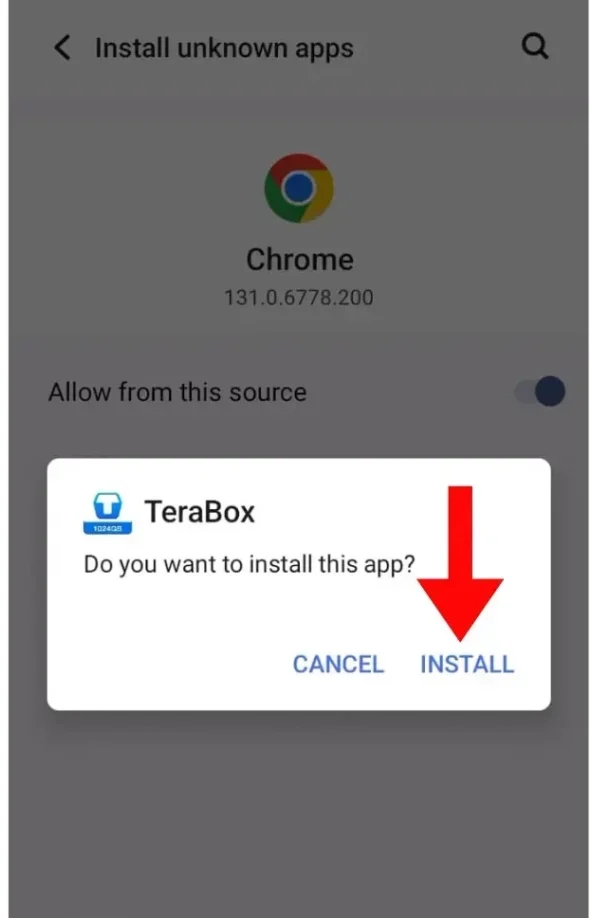
Log in to the TeraBox Mobile App
After the installation process is completed, sign in with Google or Facebook. Once logged in, you can access your storage and start uploading files.
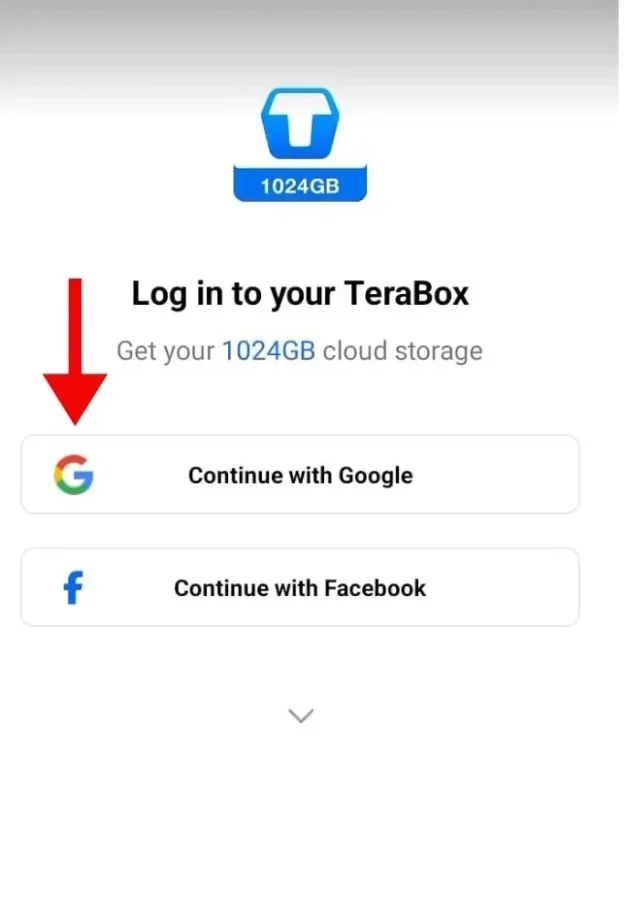
How to Upload Documents on TeraBox from Android and iOS Devices
Smartphone users can transfer their files to TeraBox through different upload methods. Follow the three easy methods below:
Method 1: Use the Upload Button in the App to Upload Documents
This is the easiest and most common way for users to learn how to upload documents on TeraBox. If you are new, this method is best for understanding how to upload documents to TeraBox from Android or iOS devices.


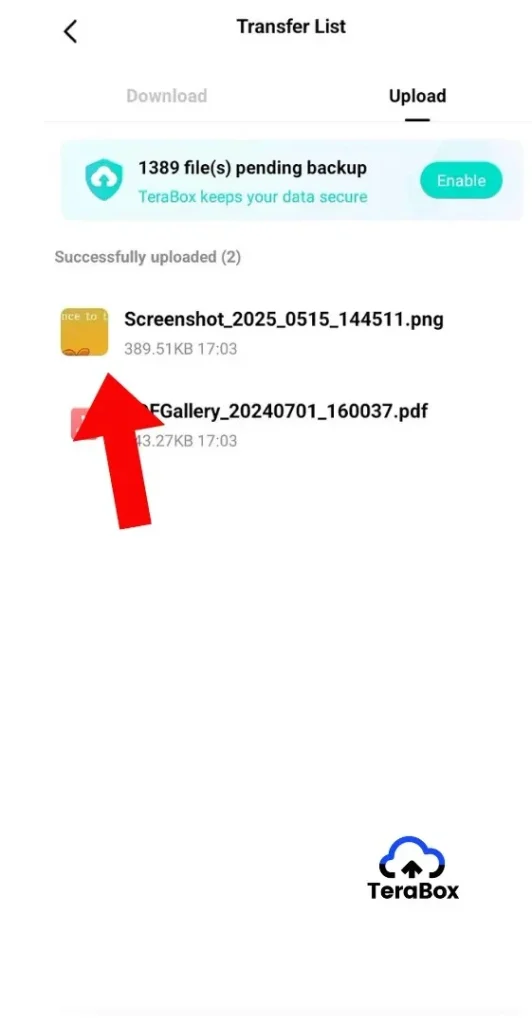
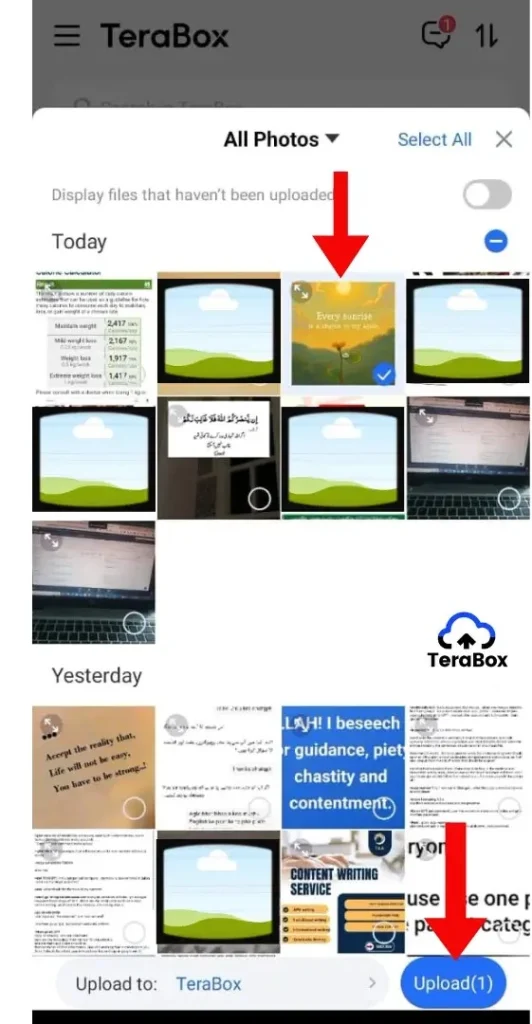
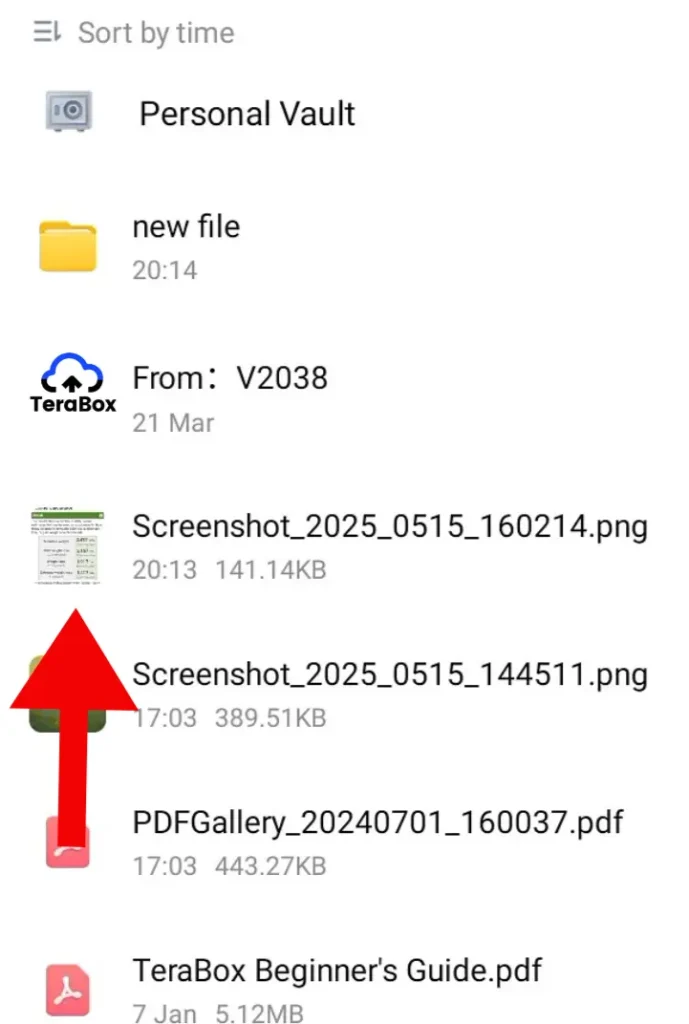
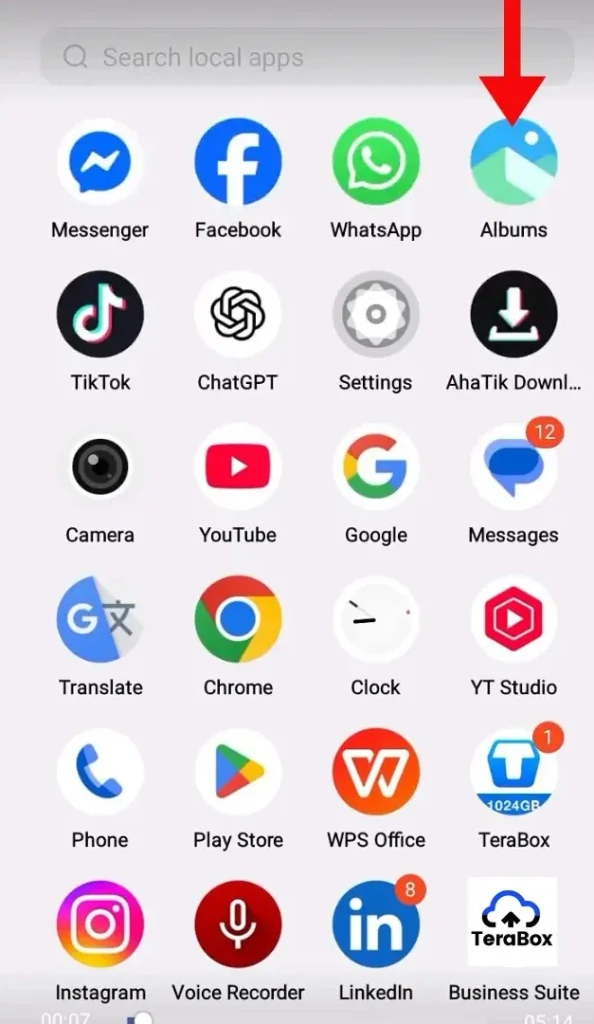
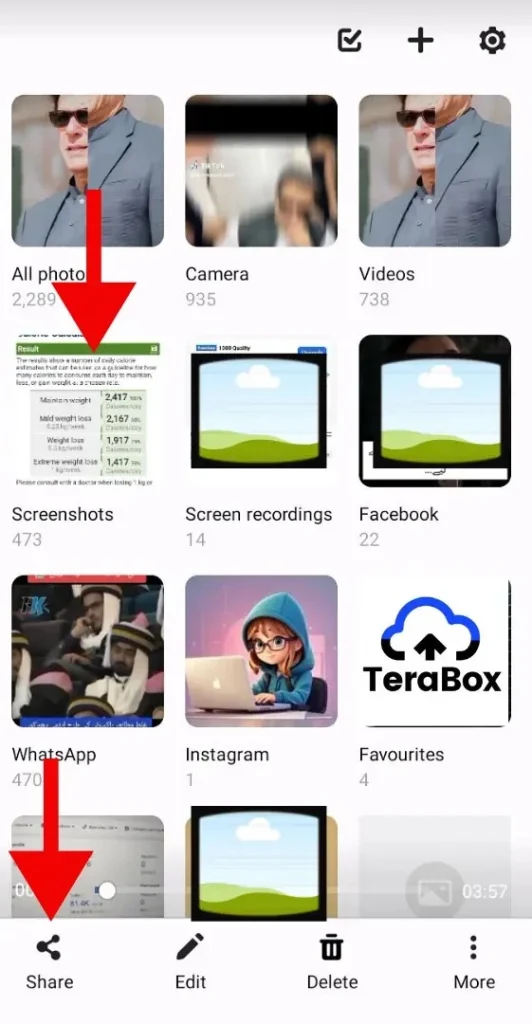
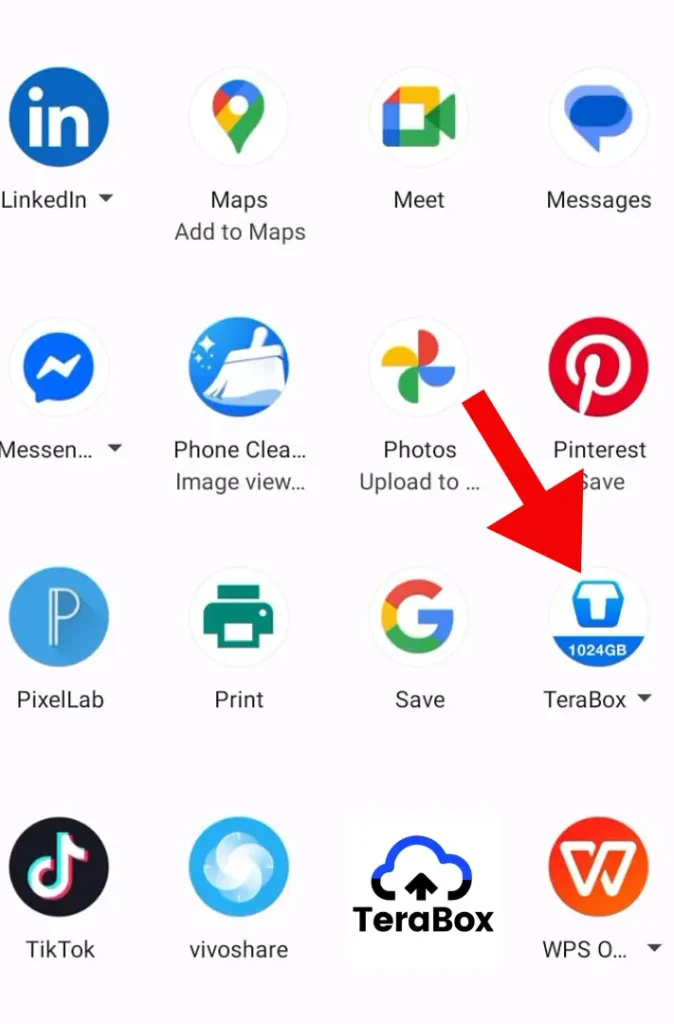
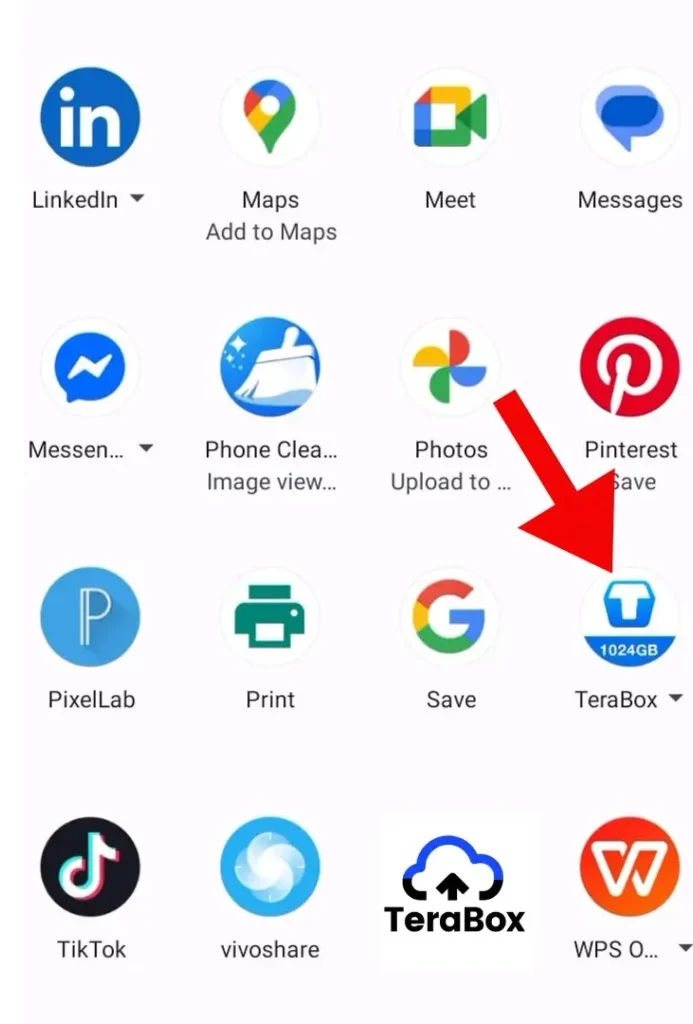
Method 2: How to Upload Documents on TeraBox Directly from Gallery
This method is useful when your file is already saved in your phone’s gallery. You do not need to open the TeraBox app first, which makes the process faster and more convenient.
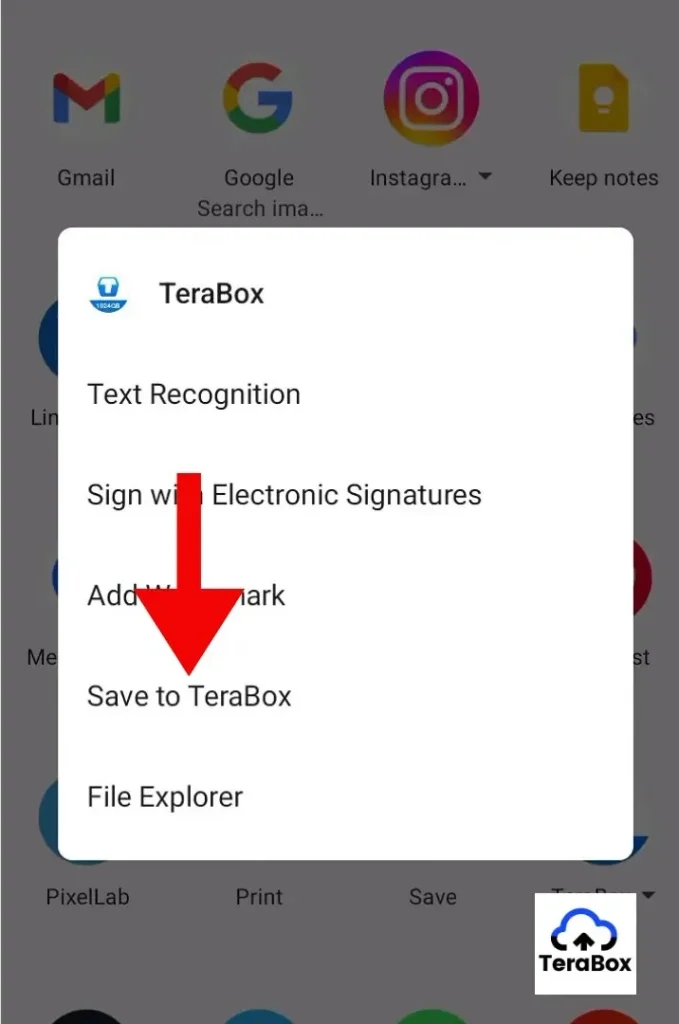
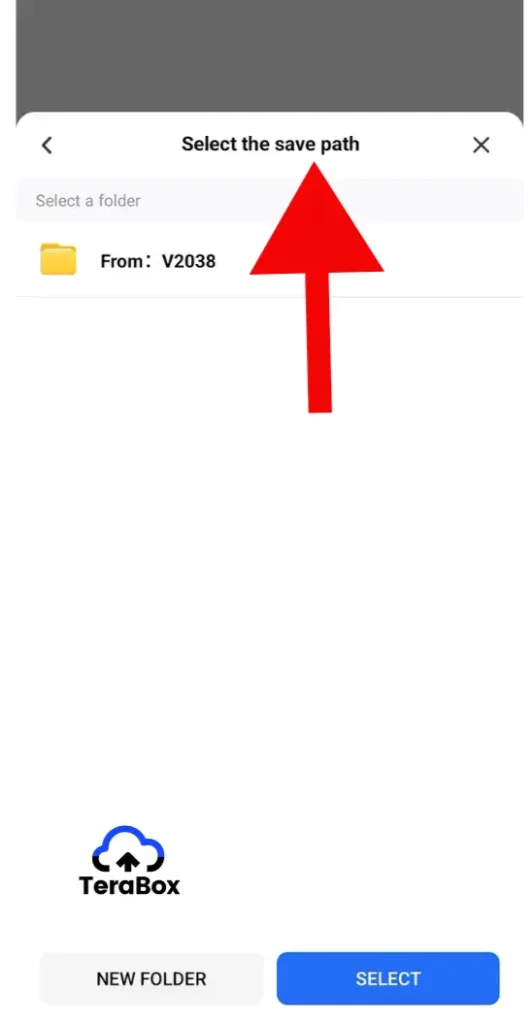
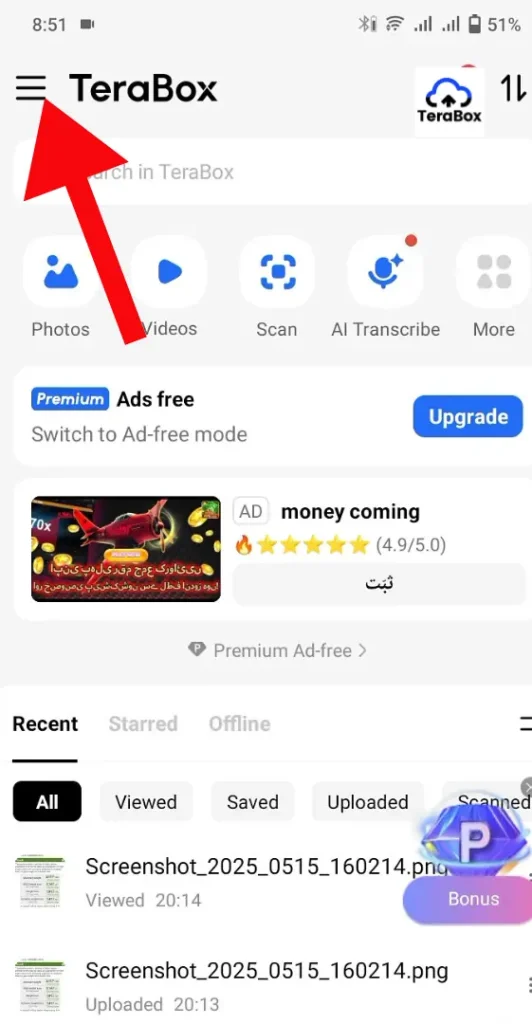
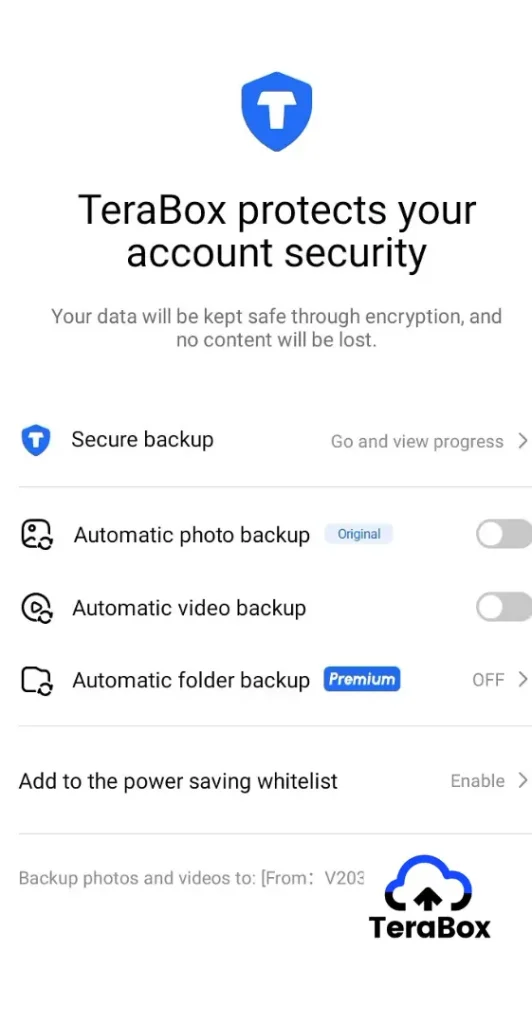
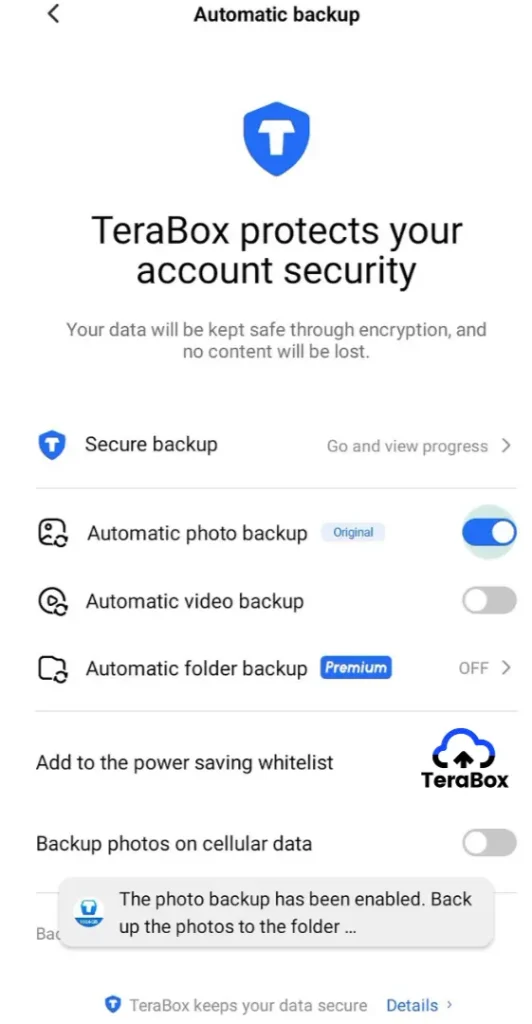
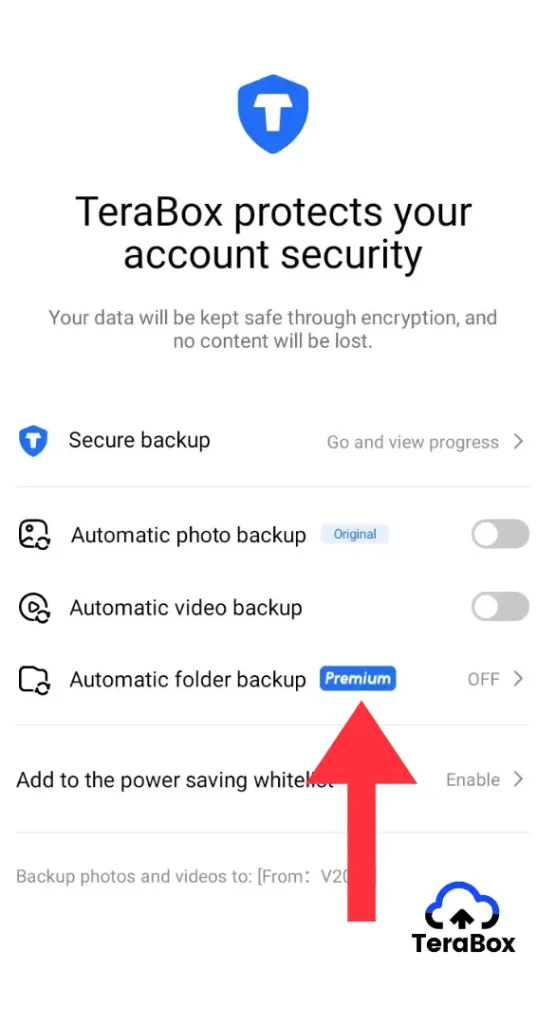
Method 3: How to Upload Documents on Terabox Using Auto Backup
This method is best for users who do not want to upload files manually again and again. Once you turn on auto backup, your files get uploaded automatically in the background.
Once enabled, your selected files will start uploading automatically to your TeraBox storage.
Basic version Limitations in the TeraBox Mobile App:
While TeraBox offers useful features for free, the basic version has some limitations. Below are the features that are not available in the free version and require a premium plan.
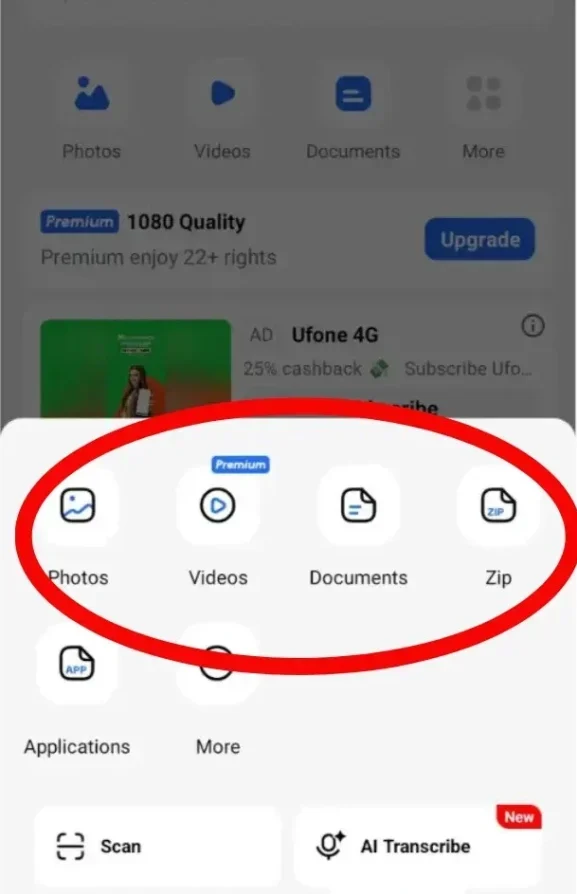
Video Uploading
The basic version has limited support for uploading videos and folders. To upload them without restrictions, you need to switch to the premium plan.
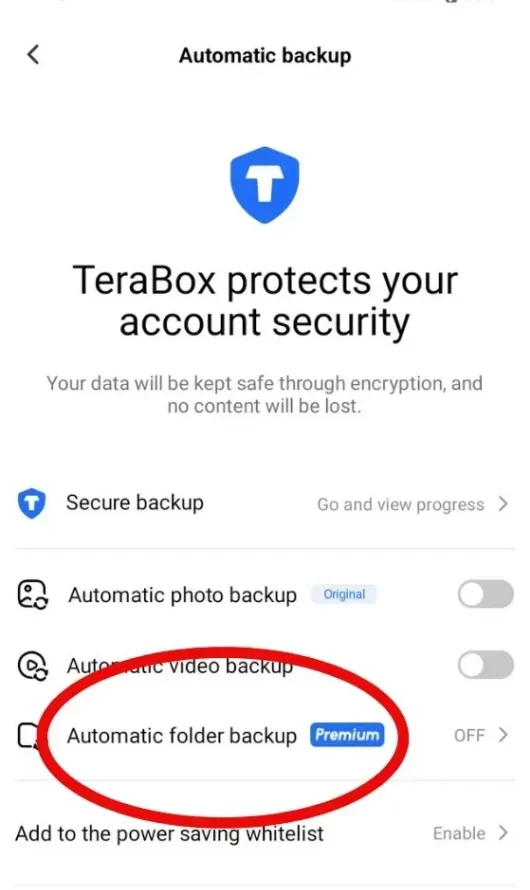
Automatic Folder Backup
Automatic folder backup is available in the premium version, so you need to upgrade to use this feature.
2. How to Upload Documents on TeraBox using Desktop
TeraBox supports easy file transfers from both desktop and laptop devices. This method is helpful when you are working with large files, but before uploading, you have to download and install TeraBox on your PC.
Download & Install TeraBox on Your Desktop
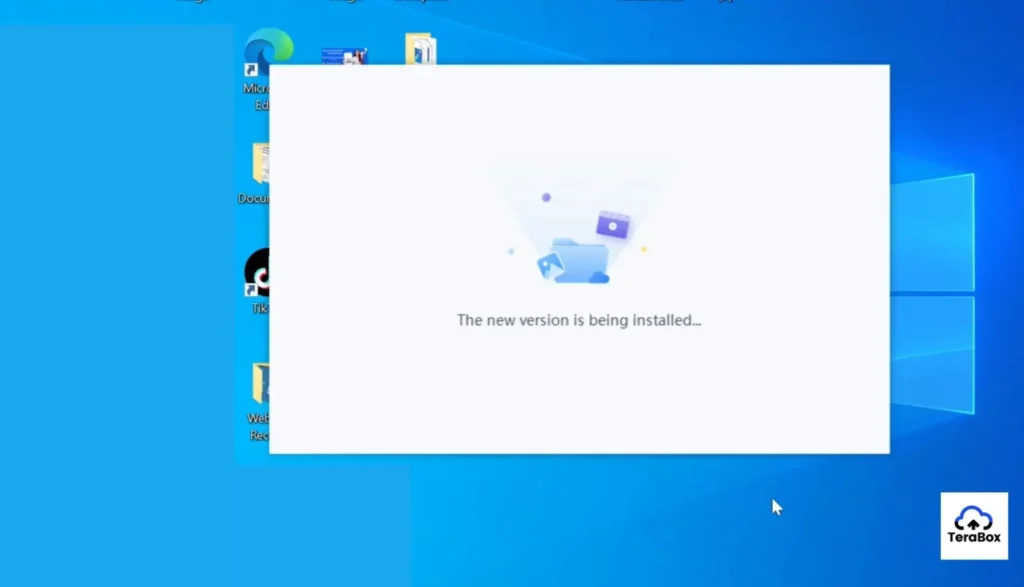
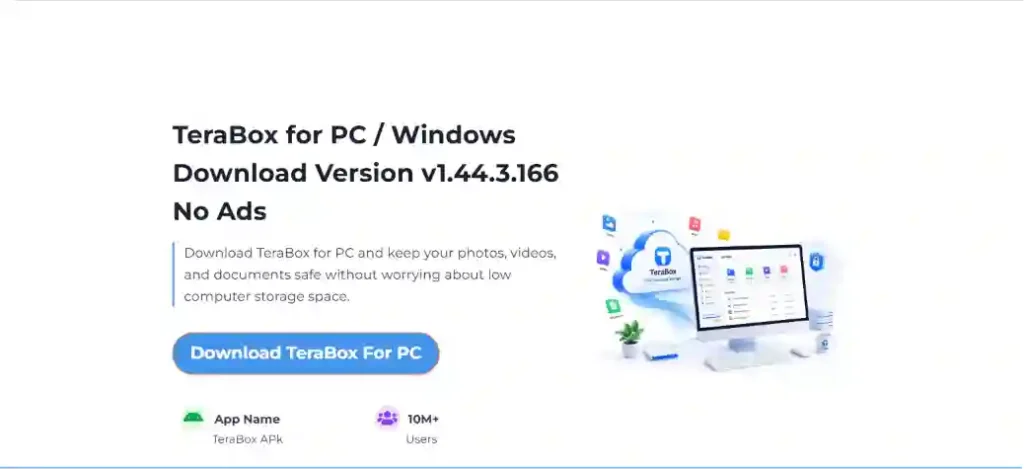
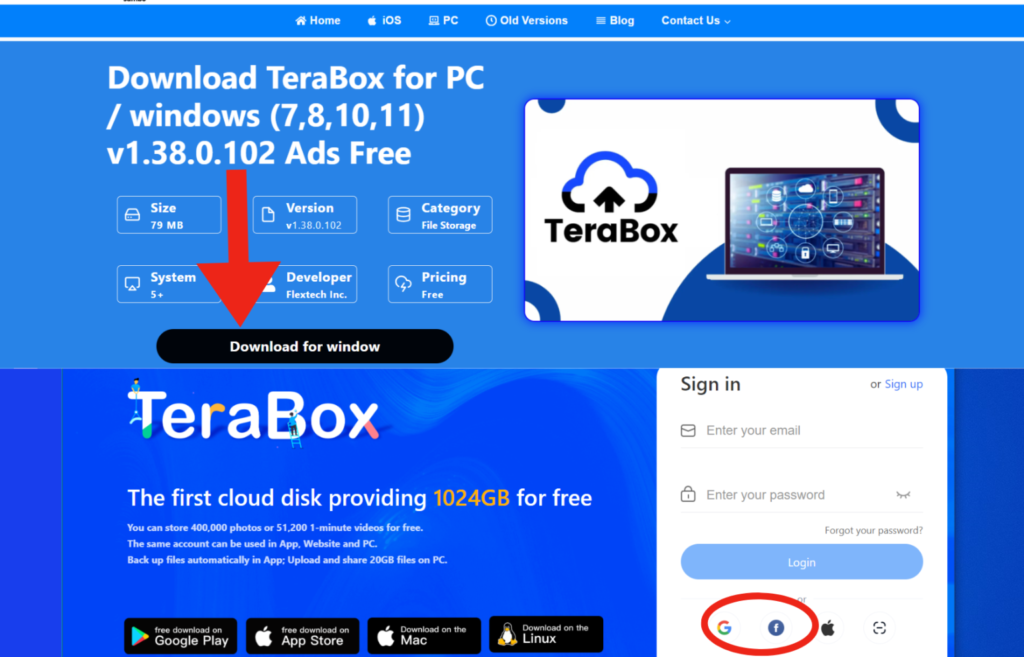
Visit our website to download and install the latest version of TeraBox for PC.
Log in to the TeraBox Desktop App
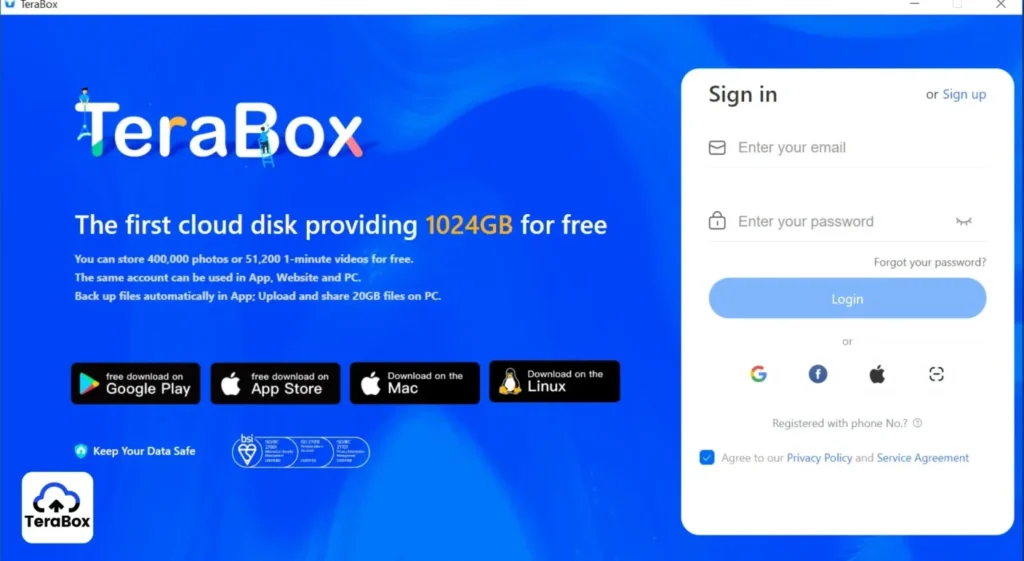
After installing the app, you can log in through your Facebook or Google account. You can also create a new email account for logging in to the TeraBox app. TeraBox no longer supports account registration through phone numbers.
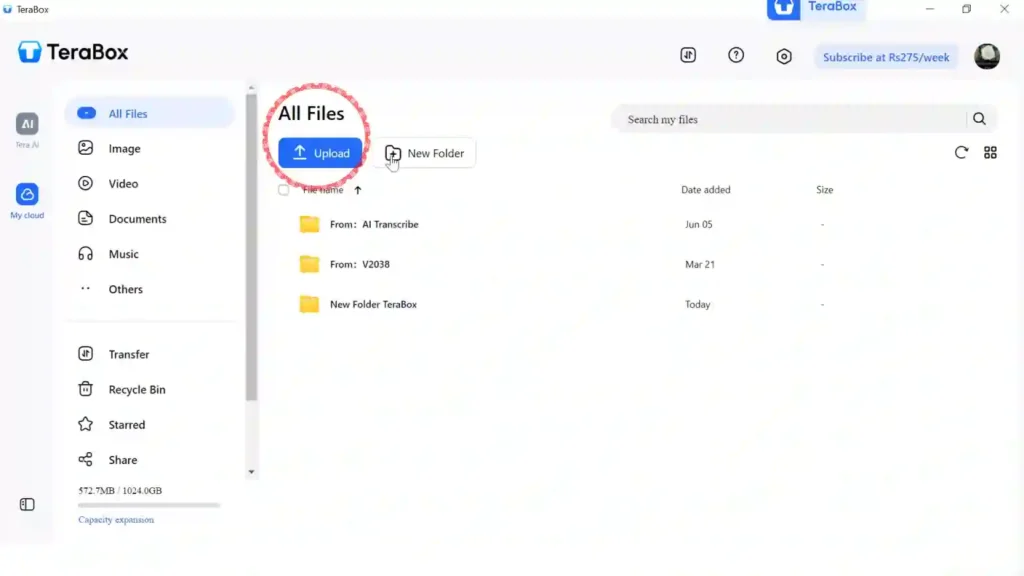
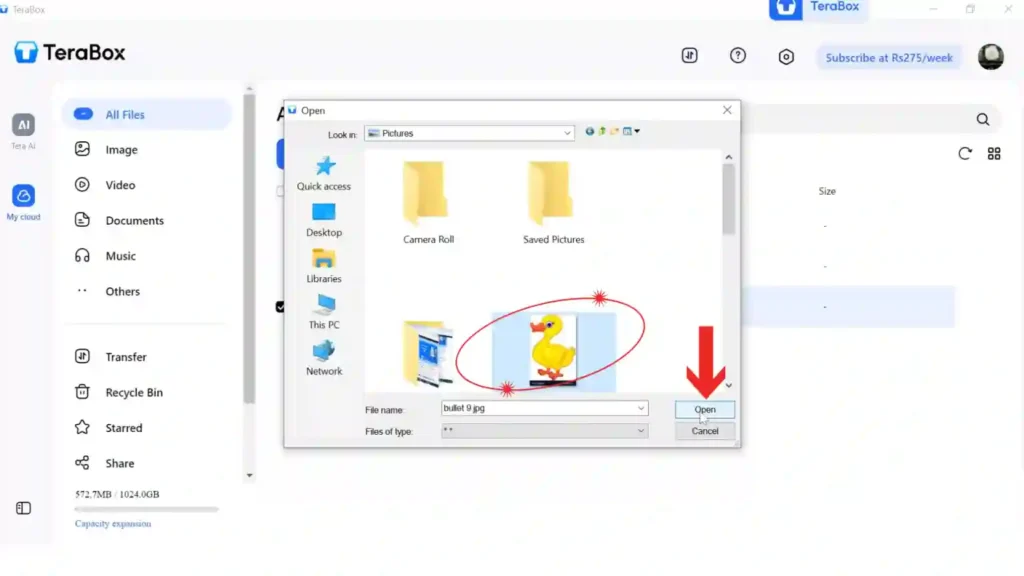
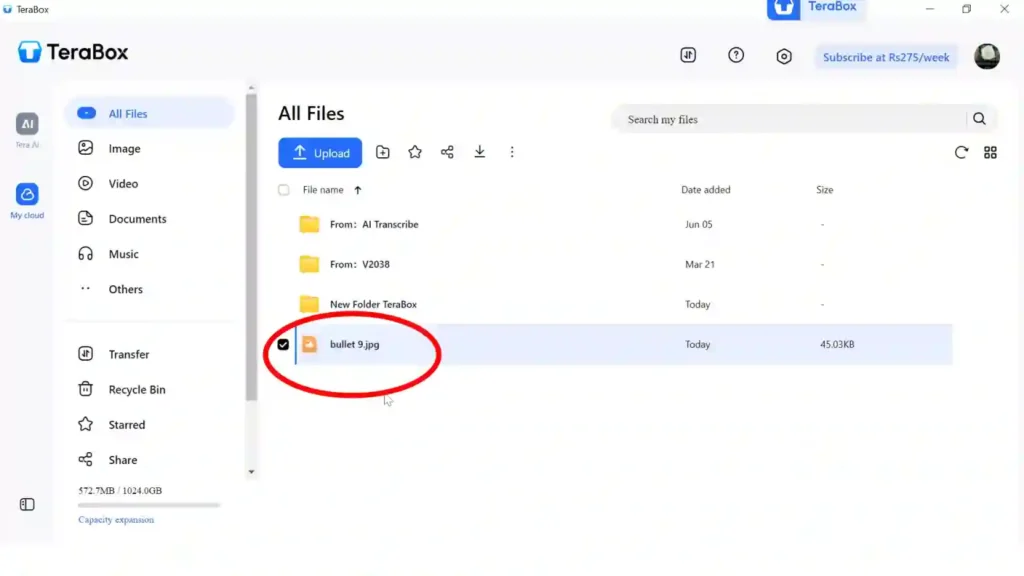
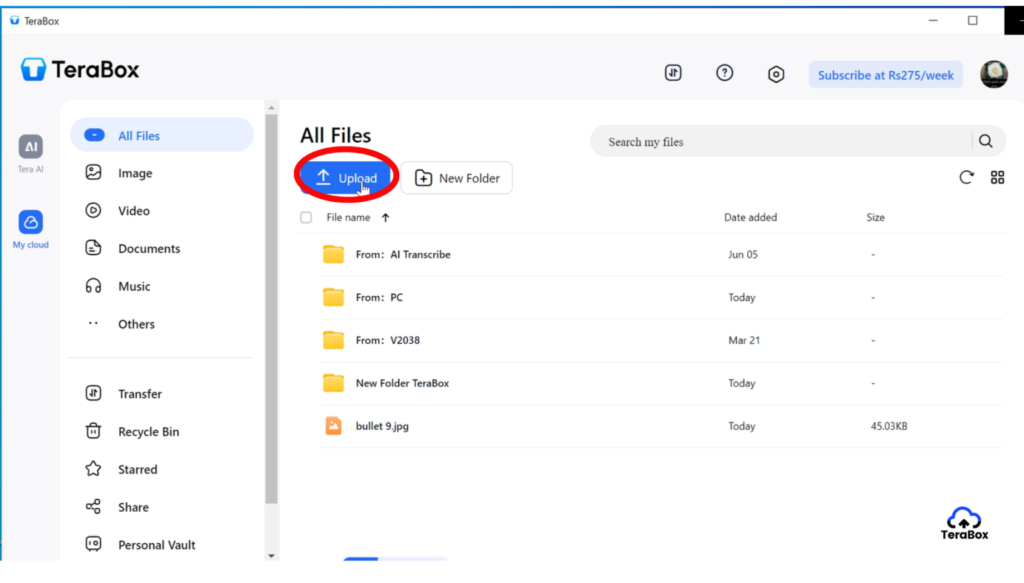
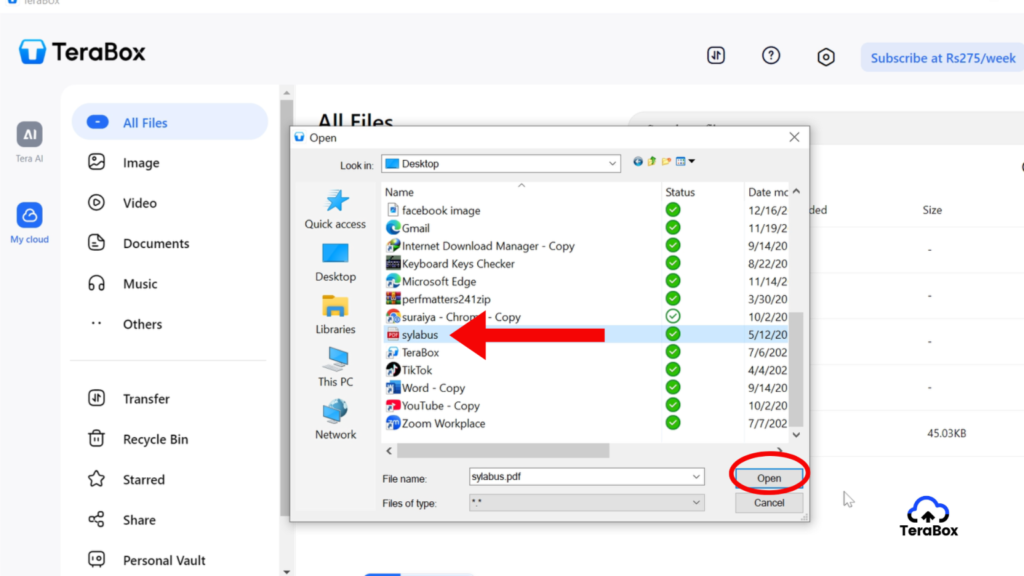
Method 1: How to Upload Documents on Terabox with the Upload Button
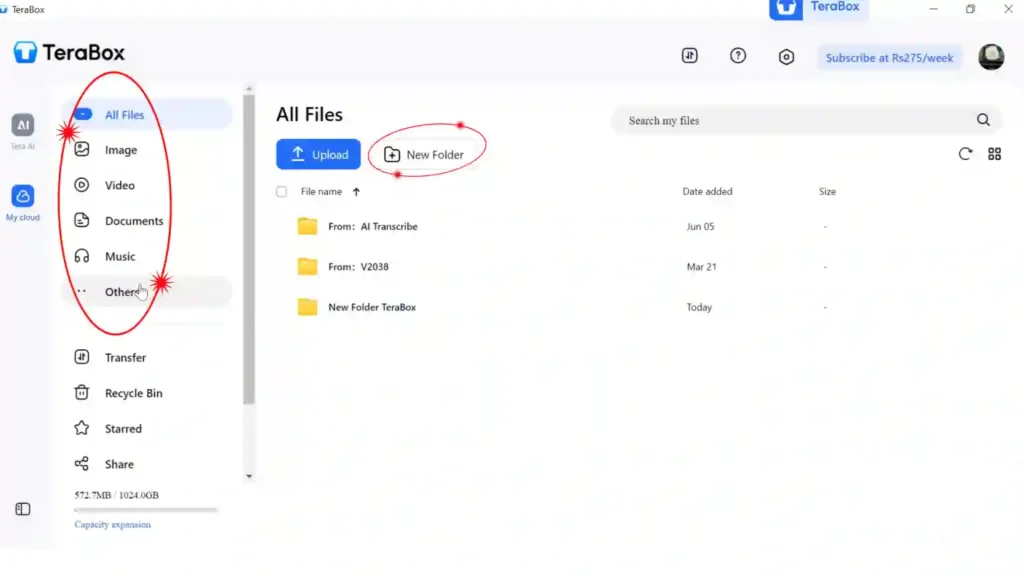
The uploaded file may not appear immediately, so refresh the page to update the folder view.
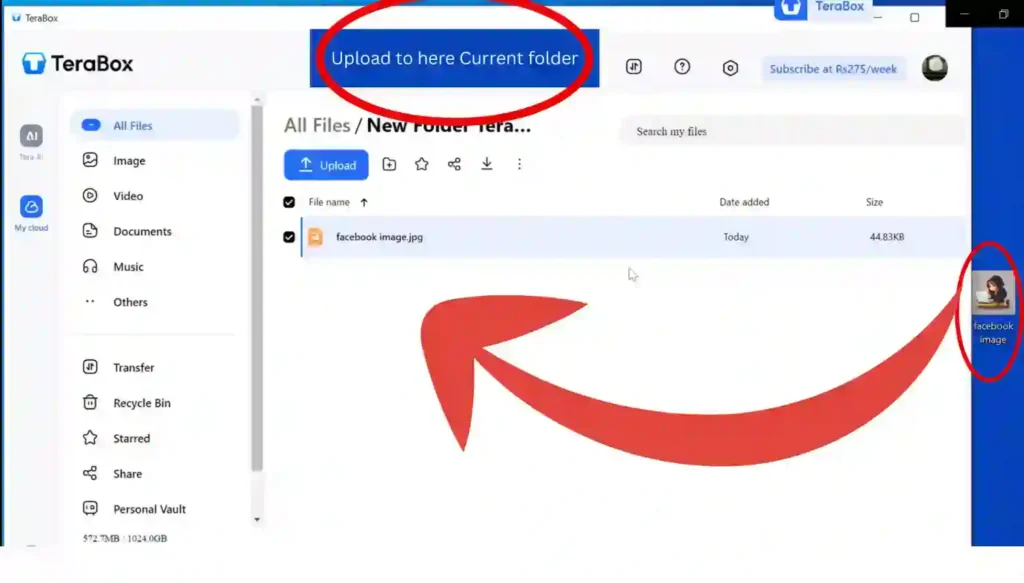
Method 2: Drag and Drop Files into the App
It is a simple and fast solution for uploading files to desktop devices.
3. How to Upload Documents on TeraBox Through a Web Browser
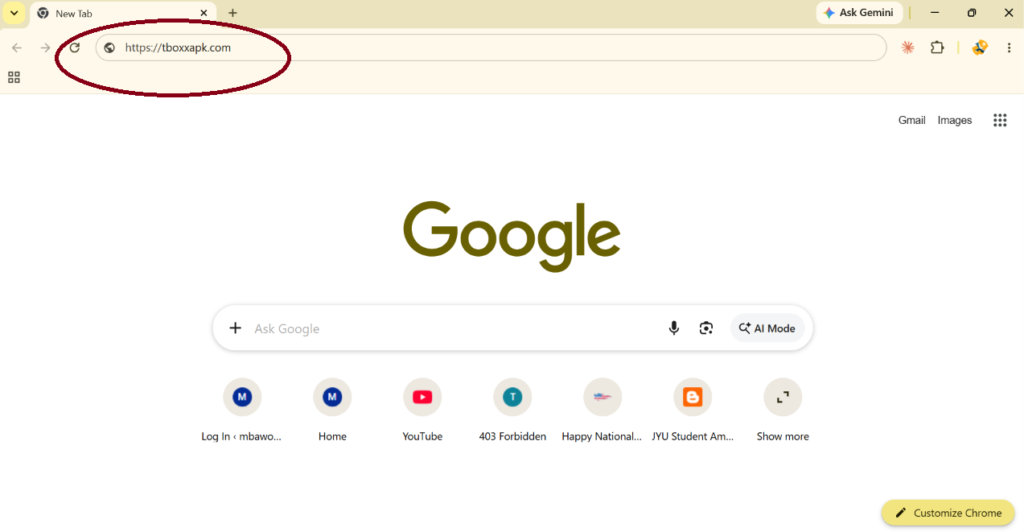
Uploading files to TeraBox from a web browser is simple and only takes a few steps. You don’t need to install any app. Just follow these easy methods to upload your files.
Method 1: Upload Documents Using the Upload Button
This is the most common and easiest method for beginners.
Method 2: Upload Documents Using Drag and Drop
This method is faster and works well on a desktop.
Once the upload finishes, the file will appear in the selected folder, and a confirmation message will appear on the screen.
4. Remotely Upload Files in TeraBox Using Telegram
Remote upload means you can send a file or video link and save it directly to your TeraBox without downloading it on your device. This feature is no longer available inside TeraBox, but we can still use it with Telegram. The guide below explains how to use Telegram for remote file uploads on TeraBox.
How to Upload Videos on TeraBox Using the Mobile App Premium Plan: Step-by-Step Guide
Users who want to upload large video files from mobile devices can use the browser in desktop mode for a smoother upload experience. This works better for users who are trying to learn how to upload large files on TeraBox without limits.
Quick Steps to Get Started
File Types You Can Upload on TeraBox
TeraBox supports a wide range of file types, including popular video formats like MP4, MOV, and AVI, everyday documents such as DOC, DOCX, PDF, and XLS, audio files including MP3, WAV, and FLAC, and compressed archives like ZIP, RAR, and 7z.
File Access & Sharing Controls
TeraBox gives you different options to control who can view or access your files. You can set the privacy level based on your needs.
Troubleshooting Common Upload Issues
Is it Safe to Upload Documents to TeraBox?
TeraBox is designed to keep your important files safe and secure. TeraBox uses advanced encryption and multi-layer protection for documents and sensitive files during upload. This helps to keep the data safe from unauthorised access and malware risk.

FAQs
Conclusion
TeraBox gives you free storage, simple controls, and different ways to upload and manage your documents and files. Once your files are uploaded, you can access them anytime and keep everything organized in one place. If you follow the steps mentioned in this guide, you will easily upload and manage your documents without any confusion.